Tutorials
How to Verify your Solana Token after Launch
Learn how to verify your Solana token, including its metadata, supply, authorities and liquidity.
On this page
Before you start
- A Solana token
- Token address
What is Solscan?
Solscan is a blockchain explorer for Solana. It allows anyone to inspect transactions, token information and wallet activity directly from the blockchain.
Unlike information displayed inside an application, data shown on Solscan comes directly from on-chain accounts. This makes it an independent way to verify that your token was created correctly.
1. Open your token on Solscan
After creating your token with Token Creator, open its Solscan page using the token address or the built-in shortcut.
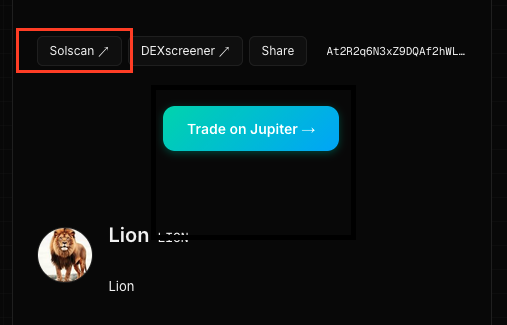
2. Verify the token identity
Confirm that the token name, symbol and logo match the information you entered during creation.
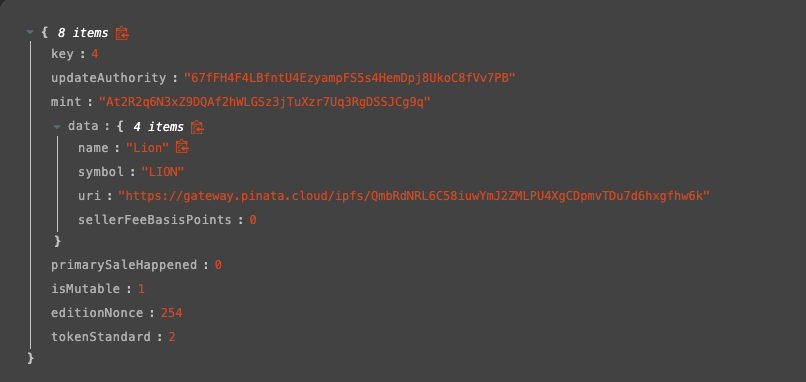
💡 Didn't upload a logo?
Wallets and explorers can still display your token, but users will usually see a generic placeholder image.
3. Verify the supply
Check that the total supply and decimals match the values chosen during token creation.
ℹ️ Remember
The displayed supply depends on both the total number of tokens and the number of decimals.
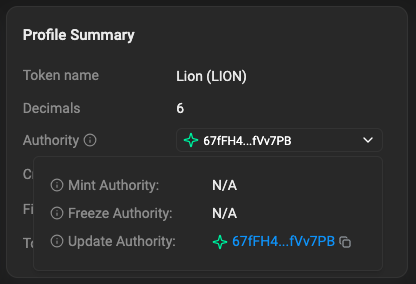
4. Verify the authorities
Inspect the Mint Authority and Freeze Authority fields. If you revoked them after creating the token, Solscan should indicate that no authority exists.
5. Verify the metadata
Check that the metadata account has been created correctly. This is where wallets retrieve the token name, symbol, logo and description.
💡 Learn more
See 'What is Token Metadata?' to understand how metadata is stored on Solana.
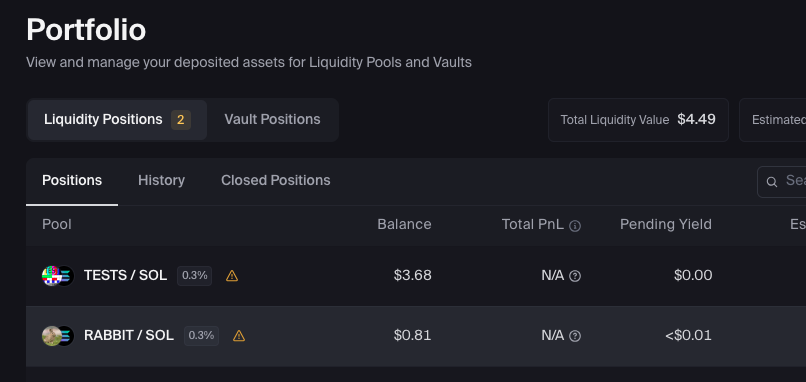
6. Verify your liquidity pool on Orca
If you've created a liquidity pool, open its Orca page and verify that the trading pair, initial price and available liquidity match your expectations.
| Check | Why it matters |
|---|---|
| Trading pair | Confirms the pool uses the correct token pair (for example TOKEN / SOL). |
| Current price | Verify that the market opened close to your intended starting price. |
| Available liquidity | Ensures enough liquidity was deposited for trading. |
| Trading status | Confirms that users can buy and sell your token. |
💡 Price moved after launch?
The market price can change immediately after the pool is created as traders begin buying and selling. Small movements are normal, while large differences may indicate that the initial price was not well calibrated.
7. Verify your vesting contract on Streamflow
If you've created a vesting contract, open it on Streamflow and verify that the recipient, locked amount and vesting schedule match your configuration.
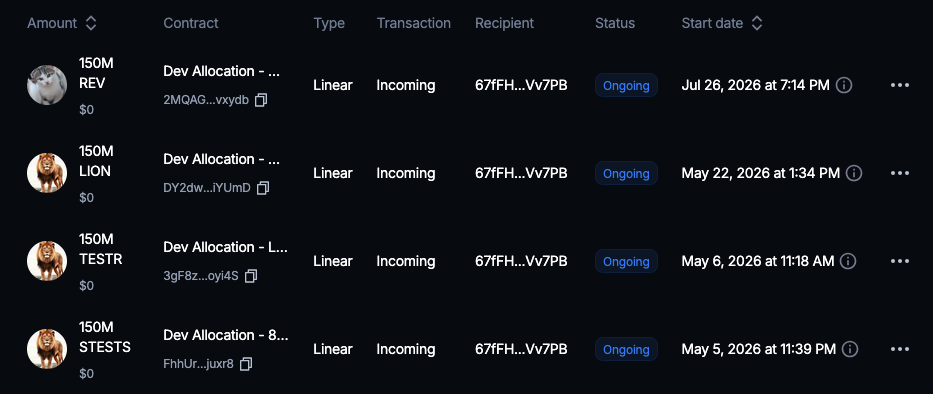
| Check | Why it matters |
|---|---|
| Recipient | Ensures the correct wallet will receive the vested tokens. |
| Locked amount | Confirms that the expected number of tokens has been locked. |
| Cliff | Verifies that no tokens unlock before the intended date. |
| Unlock schedule | Confirms that tokens will be released according to the planned vesting timeline. |
💡 Transparency
Sharing your public Streamflow vesting link allows investors and community members to independently verify your token lockup.
Common mistakes
| Mistake | Consequence |
|---|---|
| Wrong token address | You verify a different token. |
| Authorities still active | The supply or token accounts can still be modified. |
| Missing metadata | Wallets may only display the token address. |
| Incorrect supply | The token was created with different parameters. |
Frequently Asked Questions
Why can't I find my token on Solscan?
Make sure you're searching using the token mint address and wait for the creation transaction to be confirmed.
Why doesn't my logo appear?
It may take a short time for wallets and explorers to refresh metadata.
Can I trust the information on Solscan?
Solscan reads information directly from the Solana blockchain, making it an independent way to verify your token.
Do I need Solscan to use my token?
No. Solscan is only an explorer used to inspect on-chain information.
Ready to launch your own token?
Create an SPL token directly on Solana in less than a minute. No coding. No custody. Everything happens on-chain from your wallet.
Create your token →Continue reading
How to Create a Solana Token
Learn how to create your own SPL Token on Solana in just a few minutes, from choosing a name to verifying it on-chain.
What is Token Metadata?
Learn what Token Metadata is on Solana, what information it stores, and why wallets use it to display your token.
How to Revoke Mint Authority and Freeze Authority
Learn when and why to revoke your token authorities, how to do it with Token Creator and how to verify the result on-chain.
How to Create a Liquidity Pool on Solana
Learn how to create a liquidity pool on Solana, set your token's initial price and make it tradable on decentralized exchanges.